Disable Pin Security in Windows 11
So i finally success to found how to disable pin windows 11 every turn it on. So after reinstall a problematic laptop using "reset this pc" button in settings options. It takes so long and so many steps (maybe 6 hours, i am fall asleep btw). And there is a steps to login on microsoft account and add a PIN for the laptop. So i add it, then after reinstall windows is success i am realize that every restart the laptop it always asking the PIN or the password that i have been setup.
That was not my laptop so i need to remove it like before and no password or PINs. So i try to disable on the systems settings on Account tab. The remove PINs buttons is disabled so i need to now how to make it enable.
There is so many tutorials tu enable the remove buttons but it cant works on that laptop because there is missing of the steps because different windows 11 version like the button "For improved security, only allow Windows Hello sign-in for Microsoft accounts on this device" disappear. On the tutorials i need to off that toggle first to enable the remove button on the PIN options.
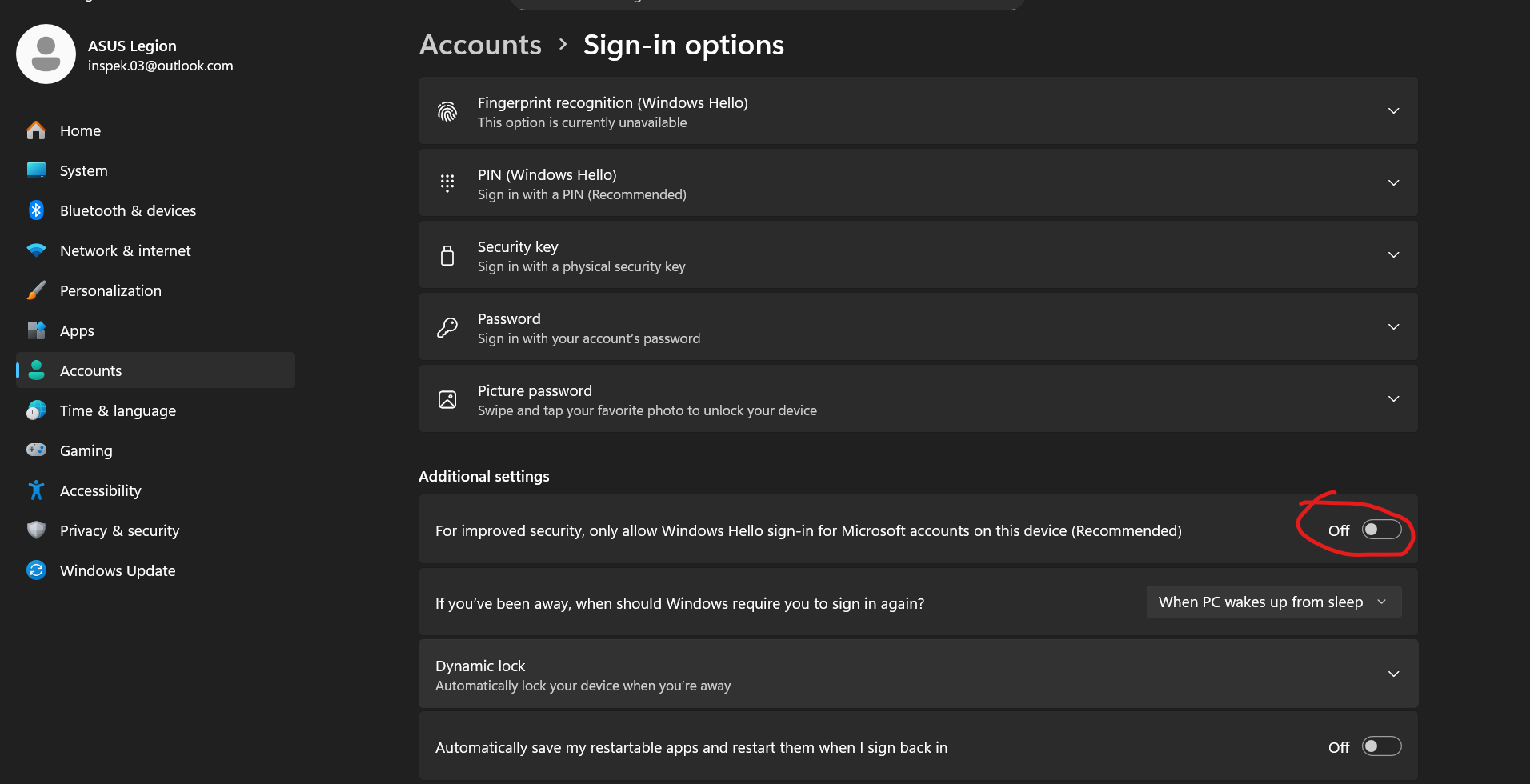
So i need to try another solutions, like changing regedit for logon to disabled or do gpedit.msc (this is blocked too, need some way to activate for windows 11 using a script .cmd). I try to cek the windows + R for "netplwiz" and turn off the "using password for this user" options. But it is doesnt exist.
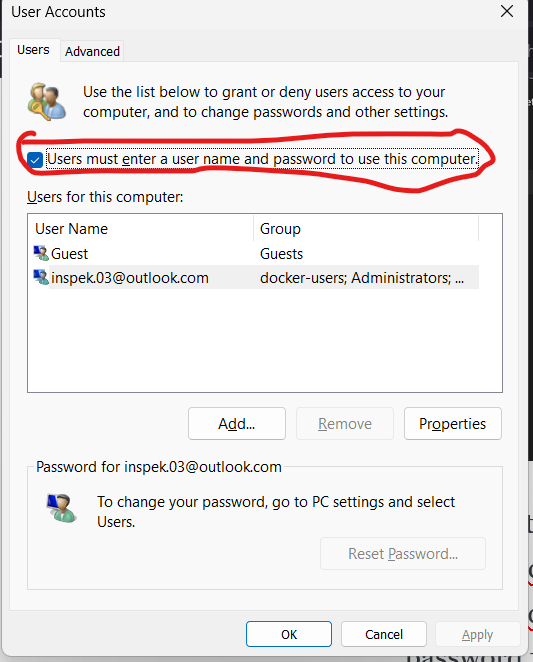
So i try to use local account instead of using microsoft account and create a new account with new password or PIN. Then i removed the microsoft account so maybe i can disable the password or PIN.
Then yah the remove button for PINs is enabled, so i remove the PIN options for sign in. But after restart the laptop is still ask the PIN.
So i need to search tutorial again and found something simple to remove it and it works.
SOLUTIONS
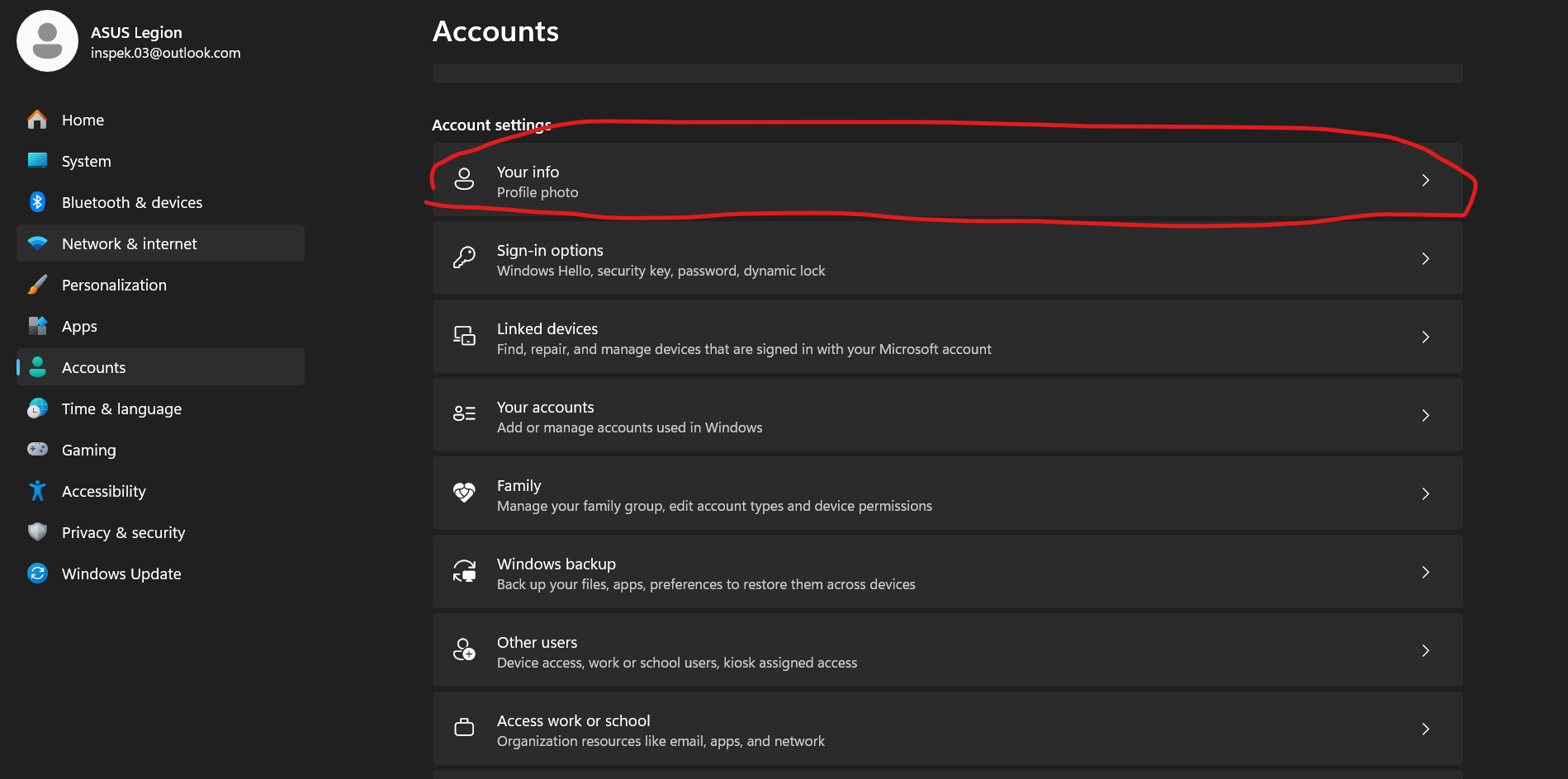
- Go to settings > Accounts > Your Info
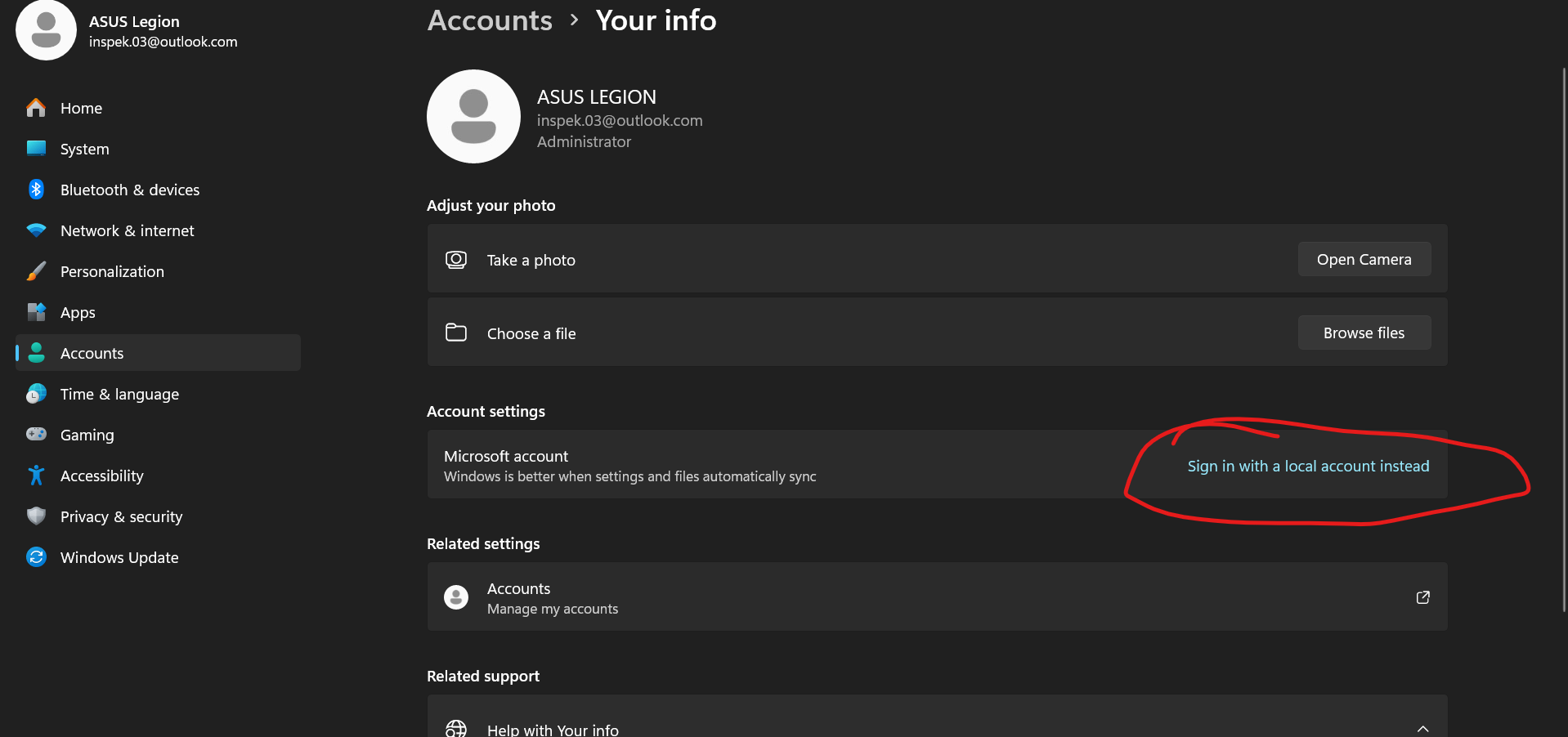
- Choose sign in with local account instead
- Next enter a PIN and create new username and dont fill the create new a password field, just enter directly or click Next button.

- After local account created and it used as main account. Remove the microsoft account (just make sure it didnt connected, i dont know if this must or not)
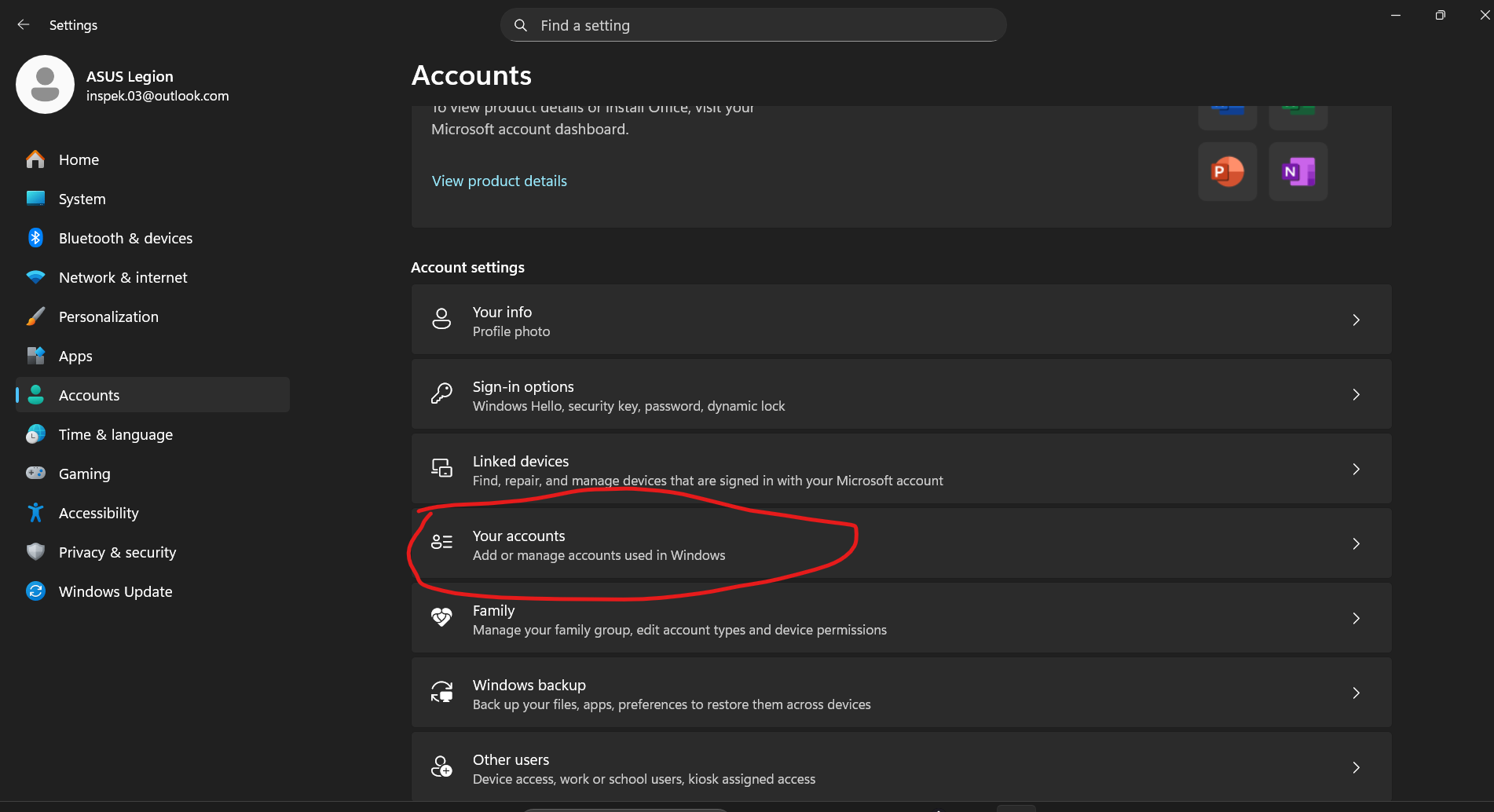
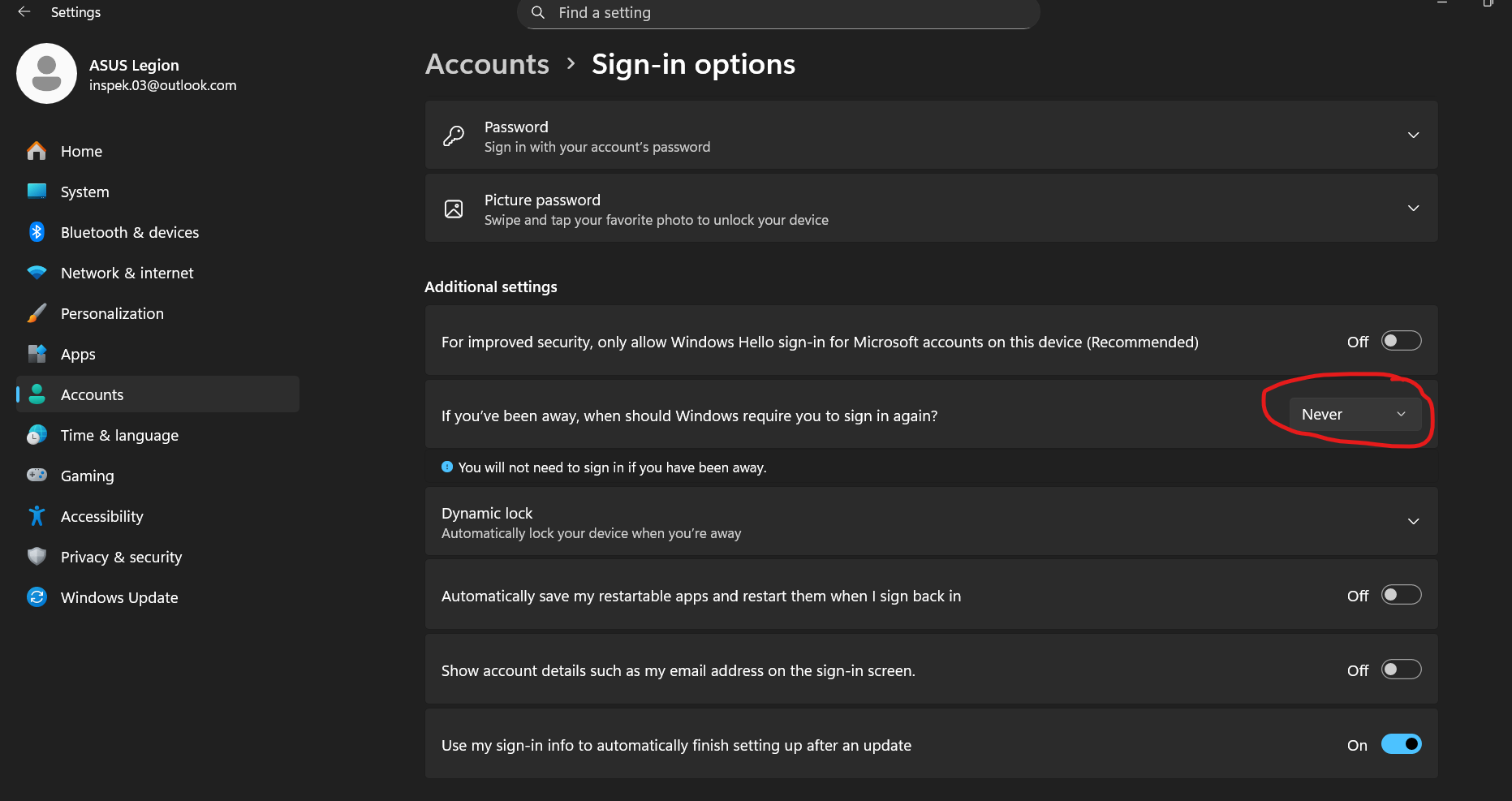
- After that i dont know this is must or not but i change the options of "if you've been away, when should windows require you to sign in again?" to never in Accounts > Sign-in Options. Enter PIN or password before changes.
- Then restart the laptop or PC. It must be didnt ask for the password or PIN again.
The solutions is really simple just dont enter a new password when create an account so the account didnt need the password or PIN to login.